Open VS Code's Command Palette and search for PowerOn Pro. The commands below use their current palette labels. Editor and Explorer actions depend on the selected file, language, connection, and installation status.
Host operations need a Symitar connection. For feature availability and Free / Plus access, see Capabilities. Connection setup is covered in the Quickstart.
PowerOn Pro Menu
Run PowerOn Pro: Show Menu, or click the PowerOn Pro status bar item 
 to open shortcuts for connections, file operations, settings, and help. The status bar also shows connection and operation progress; while a connection is starting, clicking it can cancel that attempt.
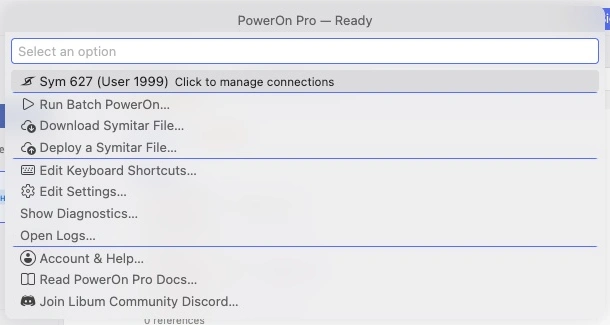
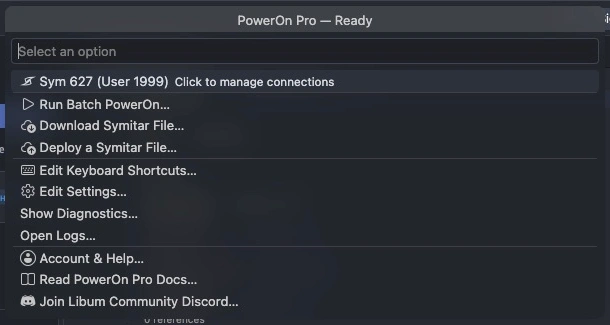
Connections & workspace
| Command | What it does |
|---|---|
| Show Menu | Open the PowerOn Pro shortcuts menu. |
| Manage Connections | Open the Connections view to manage profiles and select a Sym. |
| Manage Remote Syms | Open the Remote Syms view to manage and open synchronized workspaces. |
| Sync Remote Sym | Synchronize a Remote Sym. Incoming changes that need review appear in Source Control. |
| Clone Sym Directory... | Download a host directory into an empty local folder for standalone local or offline work. Available in Free; this does not create a managed Remote Sym. |
| Account & Help | Open Account & Help to sign in and manage subscription access. |
Manage Remote Syms replaces the old Open Remote Sym command described on this page. Use the view to open a configured workspace.
Create & format
| Command | What it does |
|---|---|
| New PowerOn File | Create a PowerOn file; also available from a folder in Explorer. |
| New PowerOn Demand File | Create a PowerOn Demand file; also available from a folder in Explorer. |
| Format PowerOn | Apply the configured PowerOn formatting rules. Requires Plus. |
Validate, deploy & download
| Command | What it does |
|---|---|
| Validate PowerOn | Validate a PowerOn against the connected Symitar host and review the returned errors. |
| Deploy and Install PowerOn | Deploy a PowerOn to the host and install it for OnDemand use. |
| Uninstall PowerOn | Uninstall a PowerOn on the host. Contextual actions appear for files known to be installed. |
| Deploy a Symitar File... | Choose the target Symitar file type and deploy the local file. |
| Deploy PowerOn… | Deploy a PowerOn to REPWRITERSPECS. |
| Deploy DataFile | Deploy a DataFile to DATAFILES. |
| Deploy HelpFile | Deploy a HelpFile to HELPFILES. |
| Deploy LetterFile | Deploy a LetterFile to LETTERSPECS. |
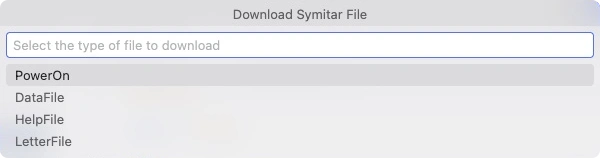
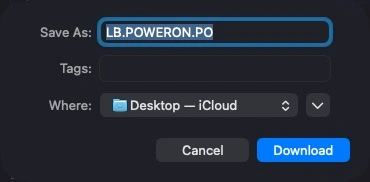
| Download Symitar File… | Choose PowerOn, DataFile, HelpFile, or LetterFile, select the host file, and choose a local save location. |
| Show PowerOn Installation Status | Show the current PowerOn installation status for the selected connection. |
Deployment changes host files; installing and uninstalling changes their availability for execution. Check the target Sym before proceeding. Files in a Remote Sym must use their associated connection.


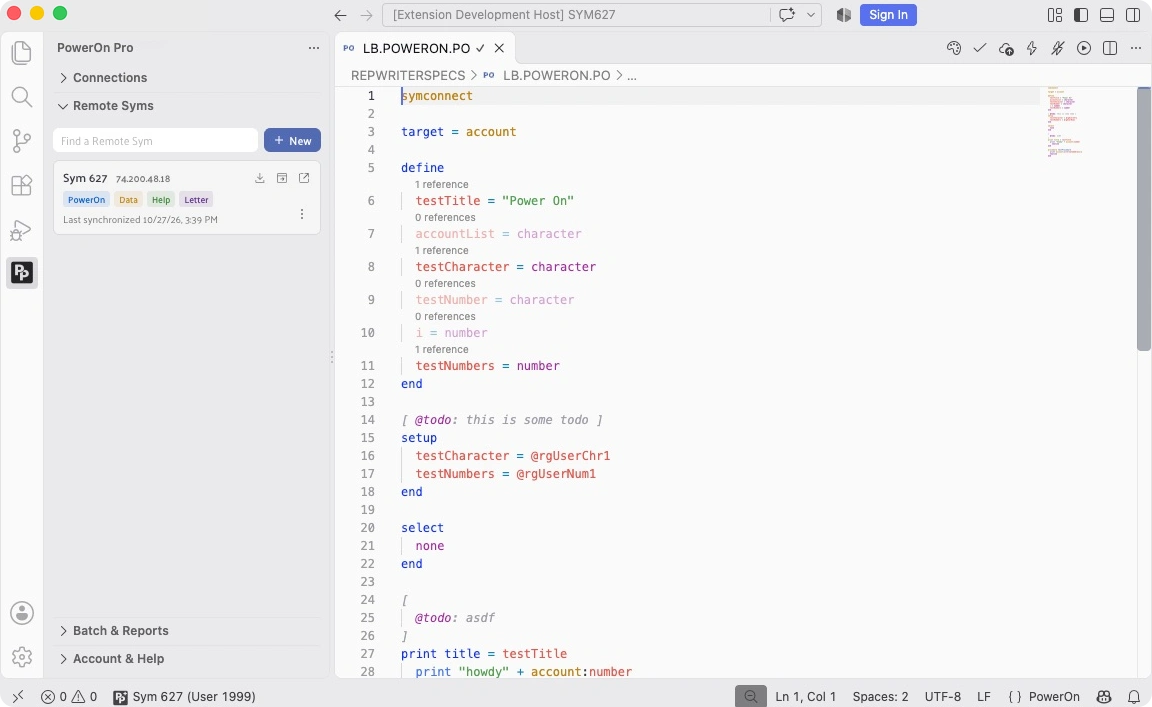
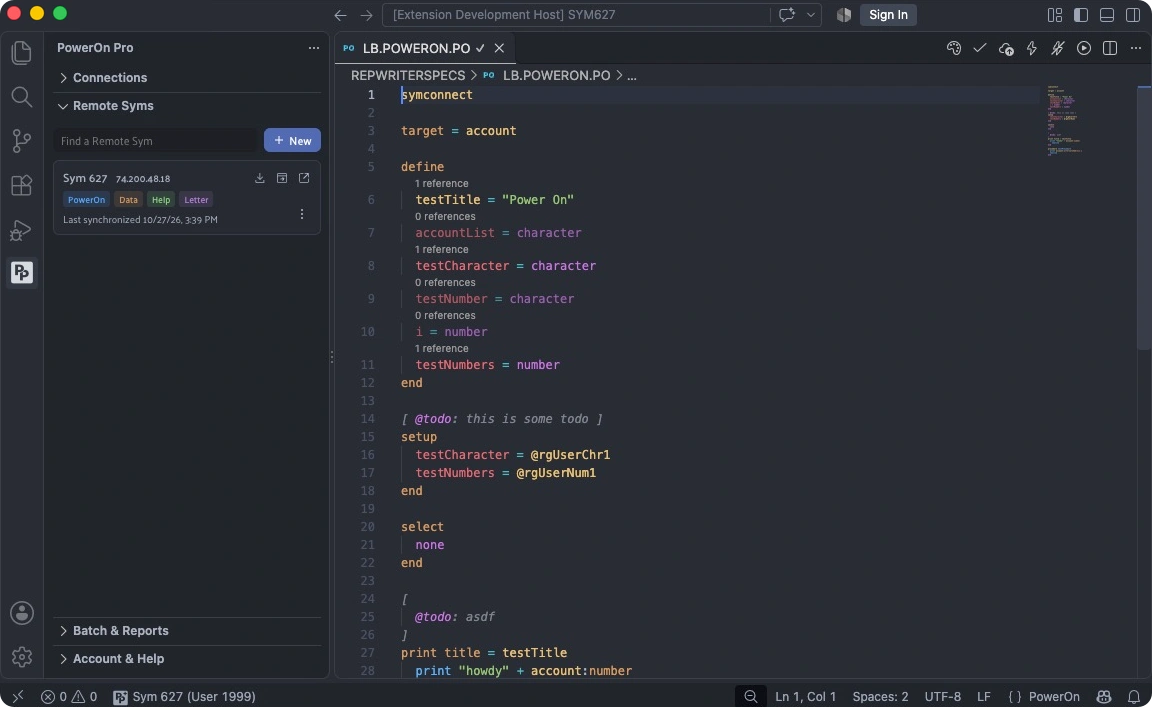
Editor toolbar
The toolbar shows actions for the active file. Hover an icon to confirm its command; the available run action changes with the PowerOn installation status.
- Format PowerOn


- Validate PowerOn


- Deploy PowerOn


- Deploy and Install PowerOn


- Uninstall PowerOn


- Run Batch PowerOn


- Run OnDemand PowerOn






Run PowerOns & find reports
To inspect OnDemand HTML, right-click inside the OnDemand view and choose Open Developer Tools, then use the element picker to select the rendered content. This context-menu action opens VS Code developer tools for the window; it does not automatically select the iframe. Enable OnDemand Open Developer Tools to open tools automatically.
| Command | What it does |
|---|---|
| Run OnDemand PowerOn | Run an interactive PowerOn with member selection, prompts, and output. A local file can be validated, deployed, and installed before running. |
| Manage OnDemand API Approvals | Review remembered API origins and select one or more to revoke. The next request to a revoked origin asks for approval again. See OnDemand API approvals. |
| Run Batch PowerOn | Submit the host’s installed PowerOn to a batch queue and follow its status. This does not deploy unsaved local edits. |
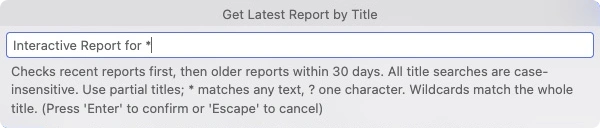
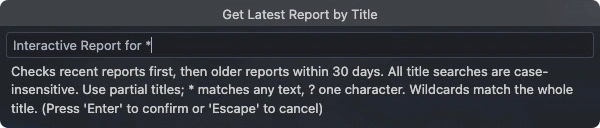
| Get Latest Report by Title... | Find and open the latest matching report by title. |
| Get Report by Sequence... | Find and open a report by its sequence number. |
Use the Batch & Reports view for queue controls, cancellation or termination requests, and report browsing. These view actions are not separate Command Palette entries. See Batch & Reports and OnDemand execution for the workflows.


Compare & review remote changes
| Command | What it does |
|---|---|
| Compare with Sym… | Compare a Remote Sym file with its host copy. Also available from eligible Explorer and editor context menus. |
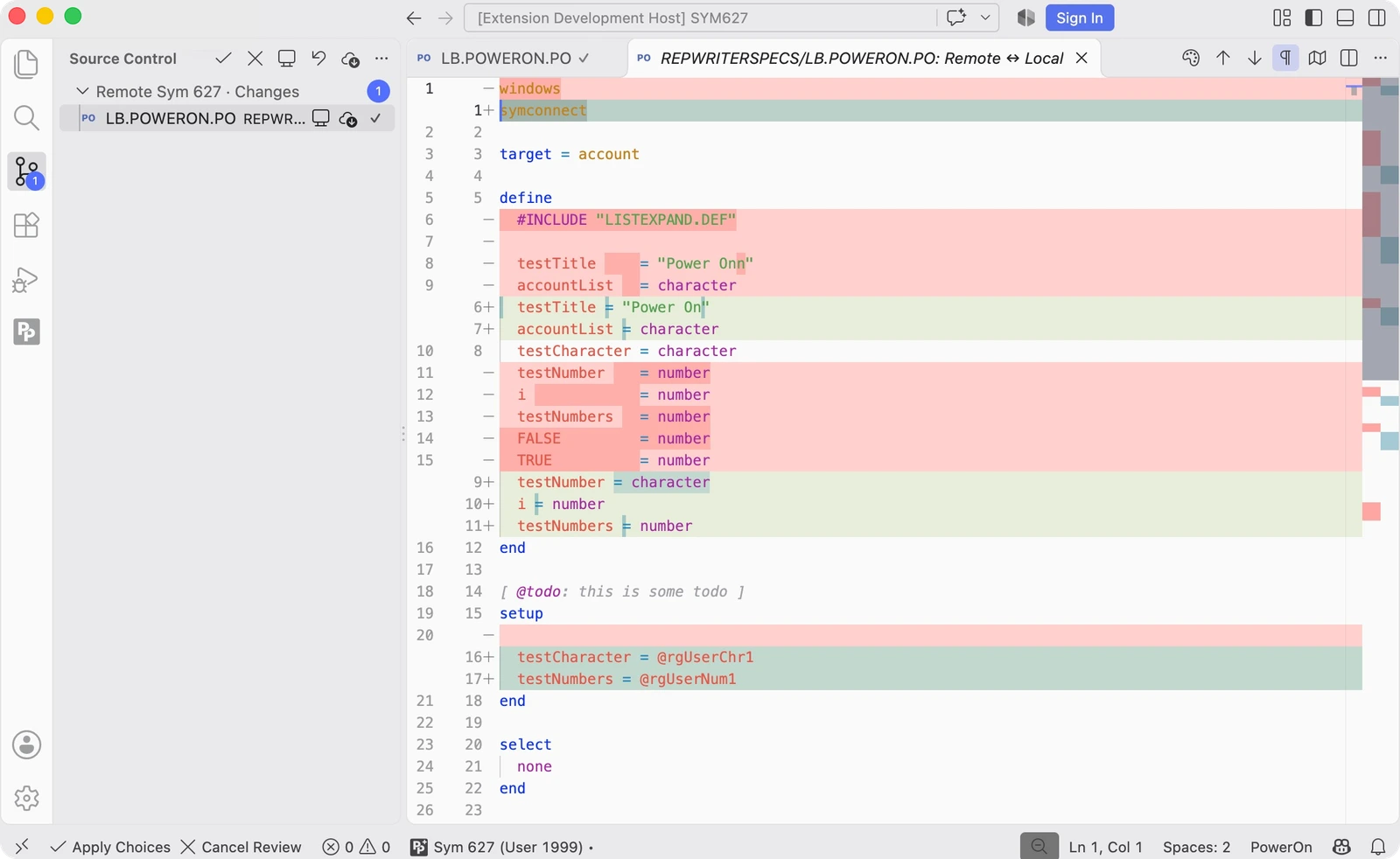
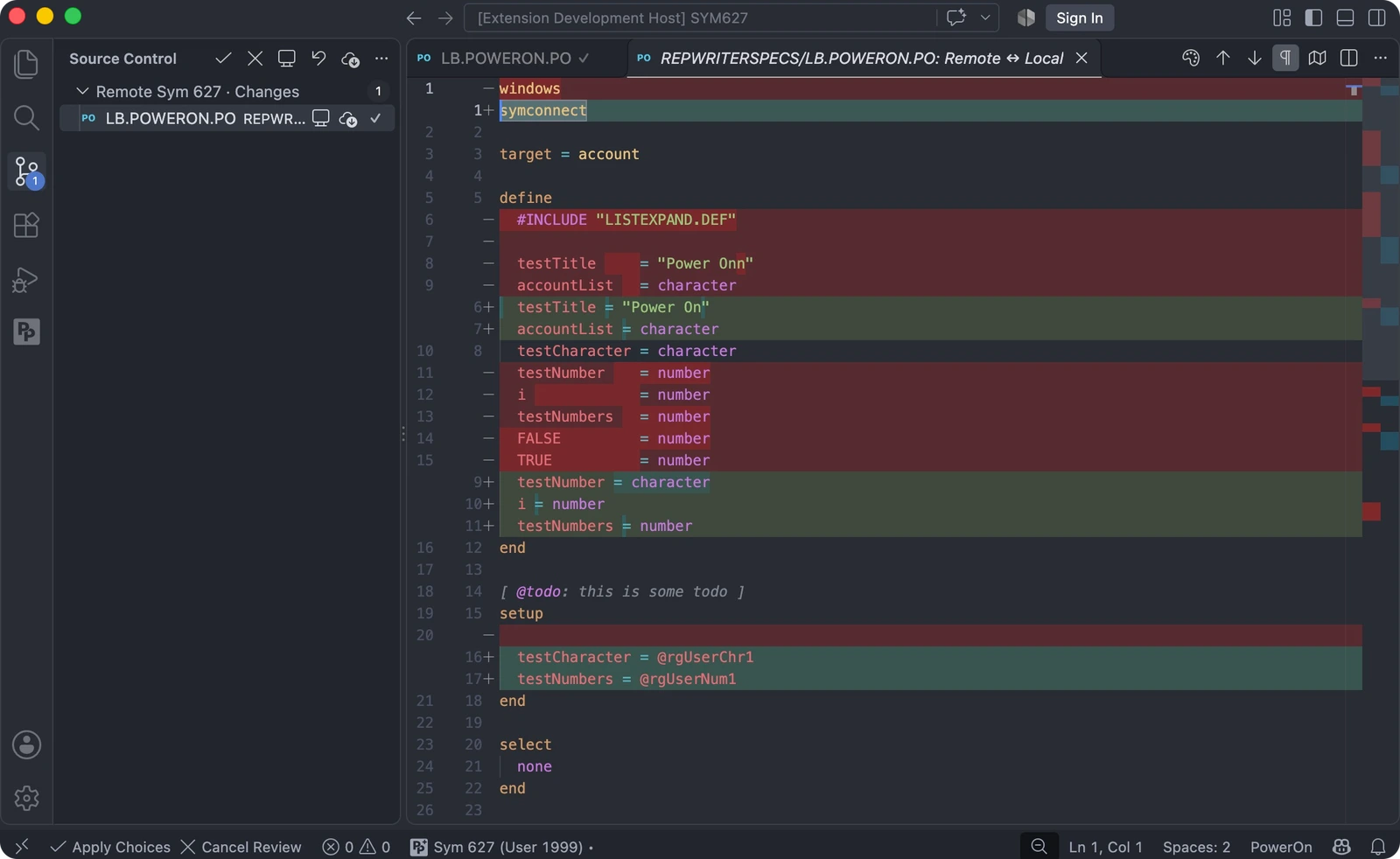
During a Remote Sym review, the following Remote Sym actions appear in Source Control rather than the Command Palette.
| Command | What it does |
|---|---|
| Use Remote | Choose the incoming version for one file. |
| Keep Local | Keep the local version of one file. |
| Use All Remote | Choose incoming versions for all files in the review. |
| Keep All Local | Keep local versions for all files in the review. |
| Apply Choices | Apply the review choices, including any required replacement or deletion confirmations. |
| Cancel Review | Cancel the review without applying unresolved choices. |
Open a review entry to compare local and remote versions. Applying review choices updates the local workspace; uploading edits remains a separate deployment step.
Multiple-file actions
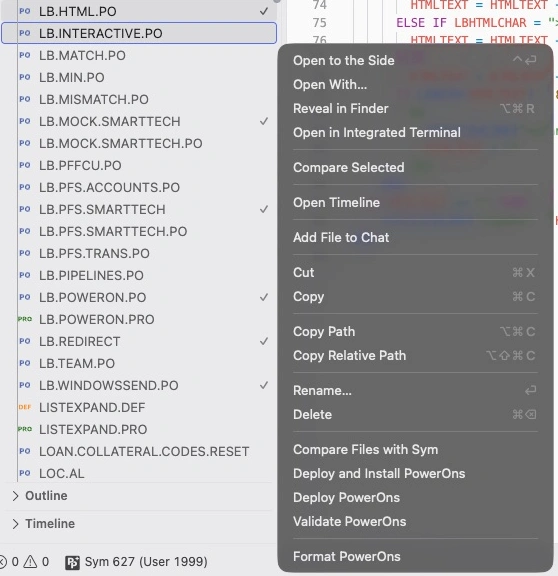
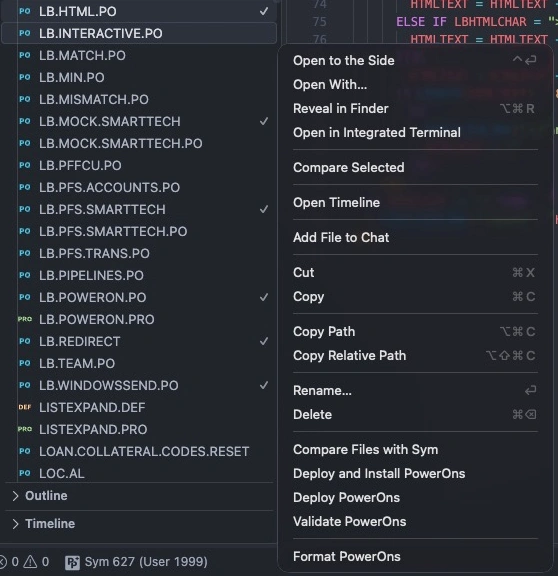
Select eligible files in Explorer and open the context menu. These commands operate on the selection and are not listed separately in the Command Palette.
| Command | What it does |
|---|---|
| Validate PowerOns | Validate selected PowerOns. |
| Deploy PowerOns | Deploy selected PowerOns. |
| Deploy Files | Deploy selected non-PowerOn Remote Sym files. |
| Deploy and Install PowerOns | Deploy and install selected PowerOns. |
| Uninstall PowerOns | Uninstall selected PowerOns known to be installed. |
| Format PowerOns | Format selected PowerOns. Requires Plus. |
| Compare Files with Sym | Compare selected Remote Sym files with their host copies. |
Troubleshooting & supporting tools
| Command | What it does |
|---|---|
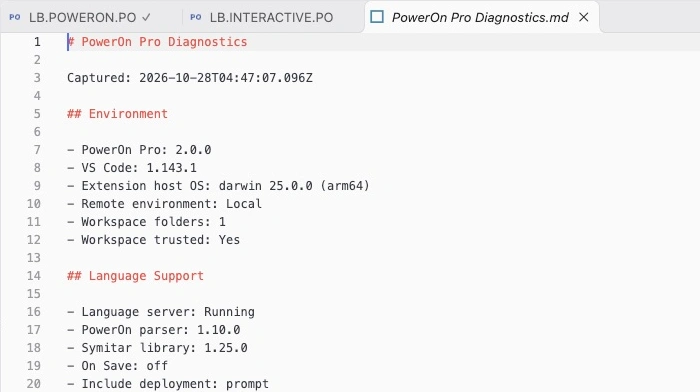
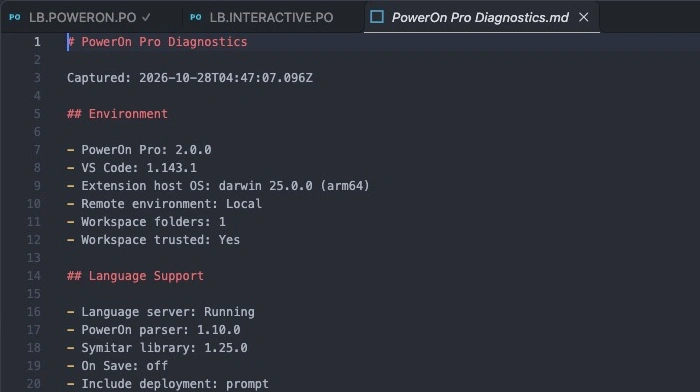
| Show Diagnostics | Open a read-only snapshot of the extension environment, language server, settings, and connection state. Run it again to refresh; this is separate from Realtime diagnostics in the editor. |
| Open Logs | Open the PowerOn Pro output channel. |
| Open Tasks | Open the Tasks view for inline @TODO reminders. |


The Tasks view has a Refresh Tasks toolbar action. Remote Syms provides Select Local Symitar Path, and the sidebar opens Batch & Reports. These are contextual view actions, not additional palette commands.